
Google Calendar vs Outlook
Google Calendar vs Outlook depends on your work ecosystem, sharing needs, sync friction, and how much manual follow-up remains.

Long time no see. I'm Nova.
Google Calendar vs Outlook — this one comes up constantly, and most articles treat it like an enterprise IT decision. It's not, at least not for people like us. If you're a solo operator or consultant bouncing between clients who use different ecosystems, the question isn't which calendar has more features. It's which one causes less friction in the way you actually work — and whether either of them is doing enough.
Here's how I think about it after running both for over a year across client projects, content work, and my own scheduling.
Quick Comparison for Work Calendars
I'm not going to say "it depends" and leave it there.
If your clients and collaborators live in Google Workspace — Gmail, Google Meet, Docs — Google Calendar is the path of least resistance. Events auto-populate from Gmail, meeting links generate with one click, and sharing a calendar with someone takes about ten seconds.
If most of your work runs through Microsoft 365 — Outlook mail, Teams, SharePoint — Outlook Calendar is where you should be. Scheduling Assistant shows everyone's availability at a glance, delegate access lets someone manage your calendar on your behalf, and the whole thing is tightly wired into Teams for calls and meeting notes.
But here's the reality for a lot of independent operators: you don't get to pick just one. Half your clients send Google Calendar invites, the other half use Outlook. You end up checking both, which is its own kind of problem. I'll get to that.
Google Workspace vs Microsoft 365 Workflows
When people compare Google Calendar vs Microsoft Calendar, they're really comparing two work ecosystems, not two calendar apps.
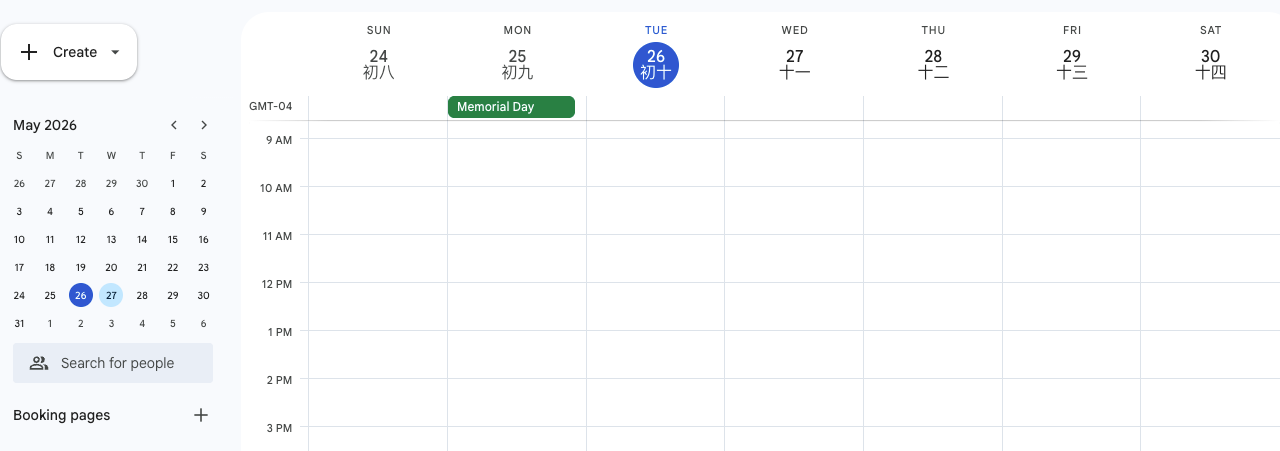
Google Calendar is cloud-native and lightweight. There's no desktop app — it lives in the browser, and the mobile app is the same experience scaled down. For solo operators, that simplicity is a feature. You open it, you see your day, you add stuff. Google Tasks sits in a sidebar panel, and as of late 2025, you can time-block tasks directly onto the calendar grid. I checked — Google's Calendar help center confirms the task integration is available for all personal and Workspace accounts.
Outlook is a heavier, more structured system. The new Outlook desktop app has improved a lot, but it's still built for organizations with shared mailboxes, room booking, and compliance requirements. Where it genuinely shines is email-to-calendar context: Outlook and Microsoft To Do are deeply connected, so you can flag an email and have it appear as a task in your calendar's My Day panel. That's actually pretty clever — it means your inbox and your schedule share a single task layer.
Wait… that's interesting. Google does something similar with Gmail auto-detecting flights and reservations, but it stops short of turning emails into tasks automatically. You have to do that manually through Google Tasks. If your work is heavily email-driven — client follow-ups, proposal reviews, contractor coordination — Outlook's email-to-task pipeline is the stronger setup.
For everything else — quick scheduling, simple sharing, cross-platform access — Google feels lighter on its feet.
Meetings, Sharing, Tasks, and Email Context
Let me break down the parts that actually matter for daily work.
Meetings: Google Calendar creates Google Meet links by default. Outlook creates Teams links. Both work fine. The difference shows up when you're scheduling across ecosystems. If you send a Google Calendar invite to someone on Outlook, it usually arrives cleanly. Going the other way — Outlook invite to a Google user — also works, but I've seen occasional hiccups with recurring events not updating properly. I haven't hit this in a while, so it may have improved — worth testing with your specific setup.
Sharing: Google Calendar makes it easy to share entire calendars with anyone who has a Google account. Permissions are straightforward: view-only, edit, or full manage. Outlook offers more structured sharing within Microsoft 365 organizations — delegate access lets someone literally send meeting invites on your behalf. For a consultant managing multiple client relationships, that delegation feature is genuinely useful. Google Calendar doesn't have true delegate roles.
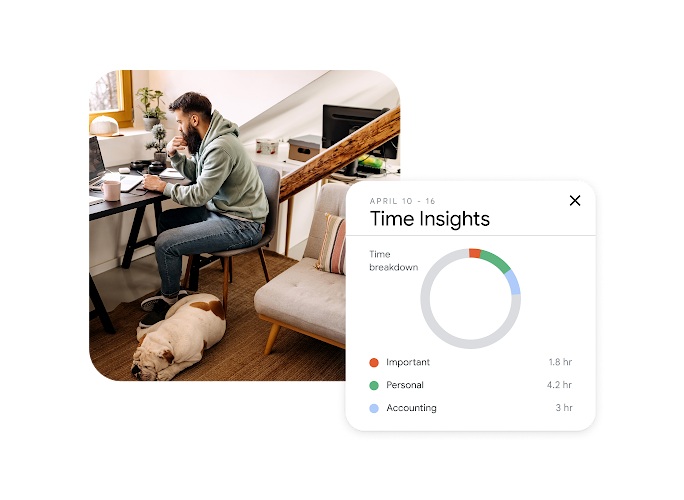
Tasks: Both platforms now put tasks inside the calendar view. Google Tasks integrates as a sidebar, and you can drag tasks onto time blocks. Microsoft To Do integrates more deeply — flagged emails become tasks, Planner tasks flow in, and My Day gives you a combined calendar-plus-task view. Outlook's task integration is more mature. I'll give it that.
Email context: This is where Outlook pulls ahead for email-heavy work. When you open a meeting in Outlook, you can see related email threads, attachments, and notes from the same contact — all without leaving the calendar. Google Calendar is more isolated from Gmail in that sense. You can attach files to events, but the calendar doesn't surface related email context on its own.
Sync Friction Across Mixed Work Accounts
This section is for everyone trying to integrate Outlook Calendar with Google Calendar at the same time. It's a more common situation than either Microsoft or Google seems to design for.
Here's what actually works: you can subscribe to a Google Calendar inside Outlook (or vice versa) using an ICS link. This gives you a read-only view of one calendar inside the other. Events show up, but you can't edit them from the subscribed side, and updates can take hours to sync — sometimes longer. It's a view, not a true integration.
For two-way sync — where changes in either calendar update the other — you need a third-party tool. I've tried a couple but haven't settled on one I'd fully recommend yet. They work, but they add another subscription, another set of permissions, and another thing that can break when an API changes. I'm one data point — your experience might be different.
How to link Google Calendar to Outlook natively: go to Google Calendar settings, find "Secret address in iCal format" under your calendar's integration settings, copy that URL, then paste it into Outlook's "Subscribe from web" option. That gets you a read-only subscription in Outlook. Reverse works too — export your Outlook calendar's ICS URL and subscribe in Google Calendar.
One thing I'd flag: imported calendars in either platform don't integrate with scheduling tools like "Find a time" in Outlook or "Suggested times" in Google. So even if you can see events from the other calendar, your colleagues won't see those blocks when trying to find an open slot with you. That's a real gap if you're working across both ecosystems daily.
Calendar Choice vs Execution Gap
I used to think the calendar question was the important one. Lately, I think it's the wrong question entirely.
Both Google Calendar and Outlook are good at telling you what's scheduled. Reminders fire, events show up, time blocks sit neatly in their grid. And at the end of a full day, you look at your calendar and it looks productive. But the actual work — the follow-up email that should have gone out after your 2pm call, the brief you were supposed to prep before tomorrow's meeting, the recurring Monday task you rebuilt from scratch again — all of that was still on you.
Scheduling is not execution. The Outlook calendar vs Google calendar question matters for coordination, but it says nothing about whether the work behind those events is actually moving.
That's what got me looking into Floatboat. It doesn't replace either calendar — it sits after them. Your calendar holds the schedule, and Floatboat uses agents to push the work forward: prepping meeting briefs from context before you ask, drafting follow-ups, running recurring work loops that used to eat an hour of manual setup every week. I'm still early with it, but the shift from "organized schedule" to "proactive execution" has been the most useful thing I've found this year. If your calendar is full but your output still depends on you manually opening every tab and chasing every next step — that's the gap worth exploring.
FAQ
What is the difference between Google Calendar and Outlook?
Google Calendar is a cloud-native scheduling tool built into Google Workspace — it's lightweight, works across all platforms in a browser, and integrates tightly with Gmail, Meet, and Google Tasks. Outlook Calendar is part of Microsoft 365, offering deeper integration with Outlook mail, Teams, SharePoint, and Microsoft To Do. The biggest practical difference: Google is simpler and more accessible across devices; Outlook offers stronger enterprise features like delegate access, Scheduling Assistant, and email-to-task workflows.
Can Google Calendar and Outlook work together?
Yes, but with friction. You can subscribe to one calendar inside the other using an ICS URL, which gives you a read-only view. For true two-way sync, you'd need a third-party tool. Native cross-platform sync between Google and Microsoft doesn't currently support real-time bidirectional updates. Please check the latest documentation from both platforms, as sync capabilities evolve.
What should users check before linking calendars?
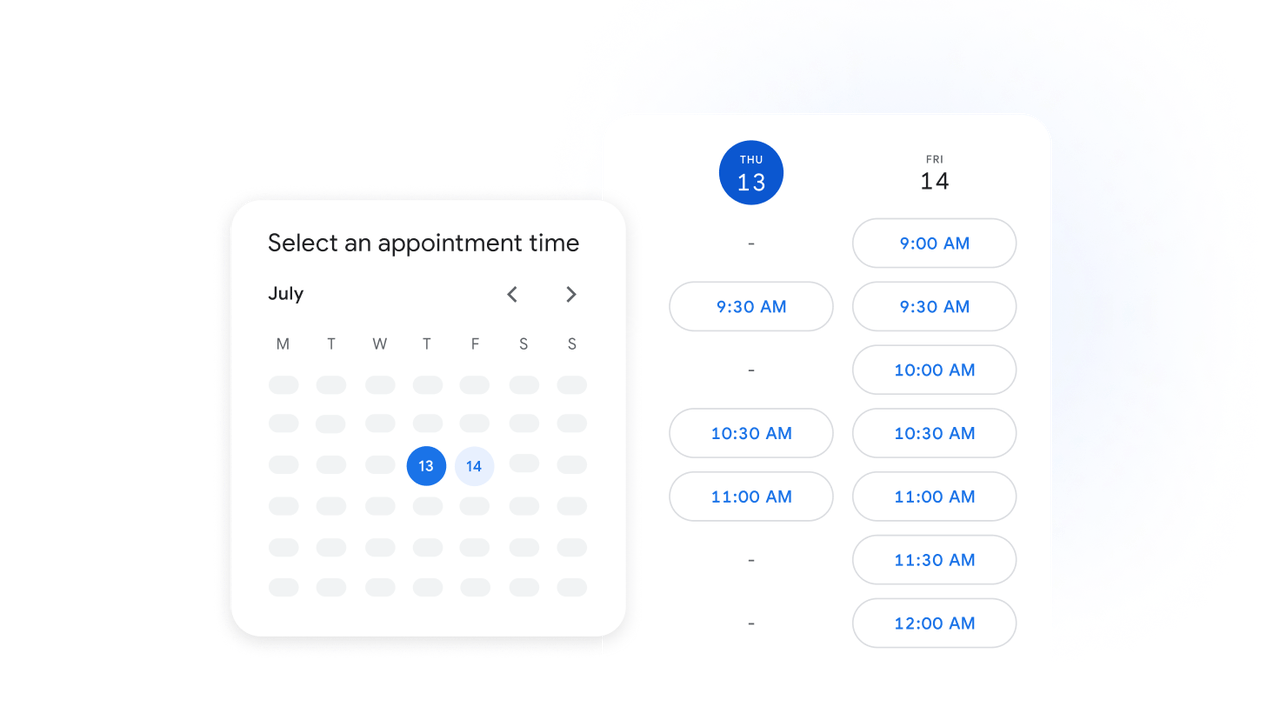
Make sure you know which calendar is set as your default for new events. Also understand that ICS subscriptions are read-only and can have significant refresh delays. Imported calendars won't show up in scheduling tools like Outlook's "Find a time" or Google's "Suggested times" — your colleagues won't see those blocks as busy. Test with a few events before relying on it for real scheduling.
When is Outlook better for work?
When your organization or clients run on Microsoft 365, when you need delegate access or room booking, or when your work is heavily email-driven and you want flagged emails to flow directly into your task list. Outlook's email-calendar-task integration is tighter than Google's for that specific workflow.
When is Google Calendar the better fit?
When you work independently or with small teams, need simple cross-platform calendar sharing, or when your workflow centers around Gmail and Google Meet. It's lighter, faster to set up, and works equally well on any device with a browser. For solo operators who don't need enterprise scheduling features, Google Calendar does the job with less overhead.
That's my honest take. Pick the calendar that matches where your work already lives — fighting your ecosystem creates more friction than any feature advantage is worth. And if you've already figured that out but your weeks still feel like you're manually pushing every task your calendar surfaces, maybe the next thing to explore isn't a better calendar. It's what happens after the reminder fires.
Previous Posts:
• Still switching between Gmail, Docs, calendars, and task apps all day? See why many solo operators are rethinking tool-hopping in Stop Context Switching: Why Workspace Agents Matter
• If your calendar keeps surfacing work but you're still manually doing every next step, here's how Workspace Agents for Solo Operators approach execution differently.
• Calendars manage schedules, but workflows move work. Read AI Workflow for Solo Founders: Why Demos and Daily Work Look Different for a practical look at where work systems usually break.
• Not sure whether you need an assistant, an automation, or an agent? Workspace Agents vs Chat Assistants breaks down the differences in real-world work setups.
• If recurring prep work, follow-ups, and admin loops keep eating your week, How to Build AI Agents for Repeated Work explores how repetitive workflows can be handled differently.
Get automation tips for your workflow
Weekly insights for non-technical professionals. No spam ever.