
Google Calendar vs Apple Calendar
Google Calendar vs Apple Calendar comes down to ecosystem, sharing, tasks, sync, and whether reminders are enough for real work.
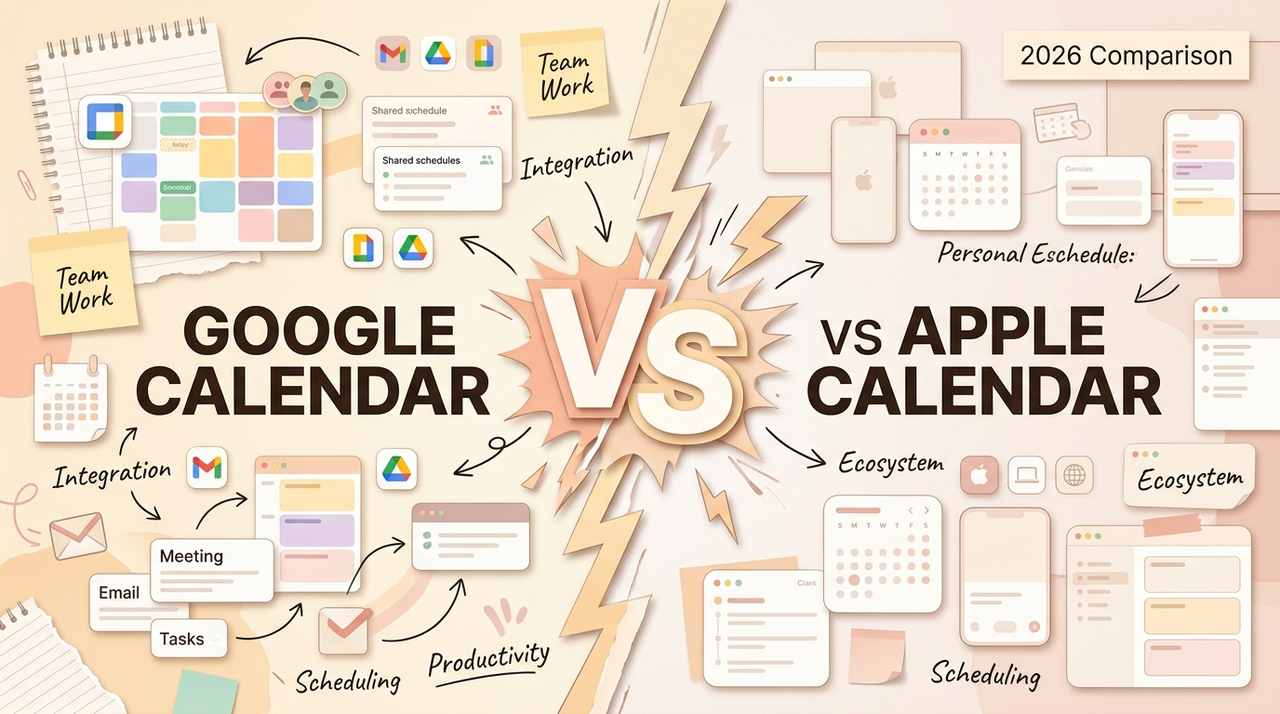
Hi , I'm Nova. Google Calendar vs Apple Calendar — I keep seeing this question in every solo operator community I follow, and most answers boil down to a feature table that doesn't tell you anything useful. So here's how I actually think about it, after years of running both side by side in my own workflow.
The short version: the answer depends less on which calendar is "better" and more on where your work already lives — and whether you've confused staying organized with actually getting things done. I'll walk through ecosystem fit, sharing, sync trade-offs, and the question nobody seems to ask.
Quick Comparison by User Type
Let me give you an actual answer instead of "it depends."
If you're a solo operator running your business through Google Workspace — Gmail, Docs, Meet — Google Calendar is the obvious choice. It's already wired into your work communication. Flights get added automatically. Meeting links generate themselves.
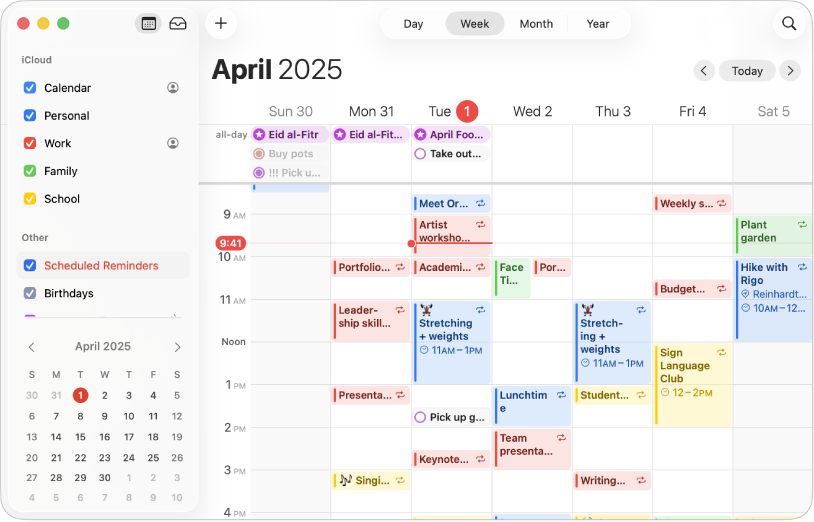
If you're deep in the Apple ecosystem — MacBook, iPhone, iPad, Apple Watch — and your scheduling is mostly personal or small-team, Apple Calendar will feel more natural. Siri handles event creation, the interface is clean, everything syncs through iCloud.
But here's the thing most comparison articles skip: for a lot of us, the answer is both. I use Google Calendar for anything work-related and Apple Calendar picks it up on my devices automatically because I added my Google account in iOS settings. That's not a workaround — that's how most people I know actually operate.
Ecosystem Fit: Google Workspace vs Apple Devices
This is where the real decision lives. Not in feature lists.
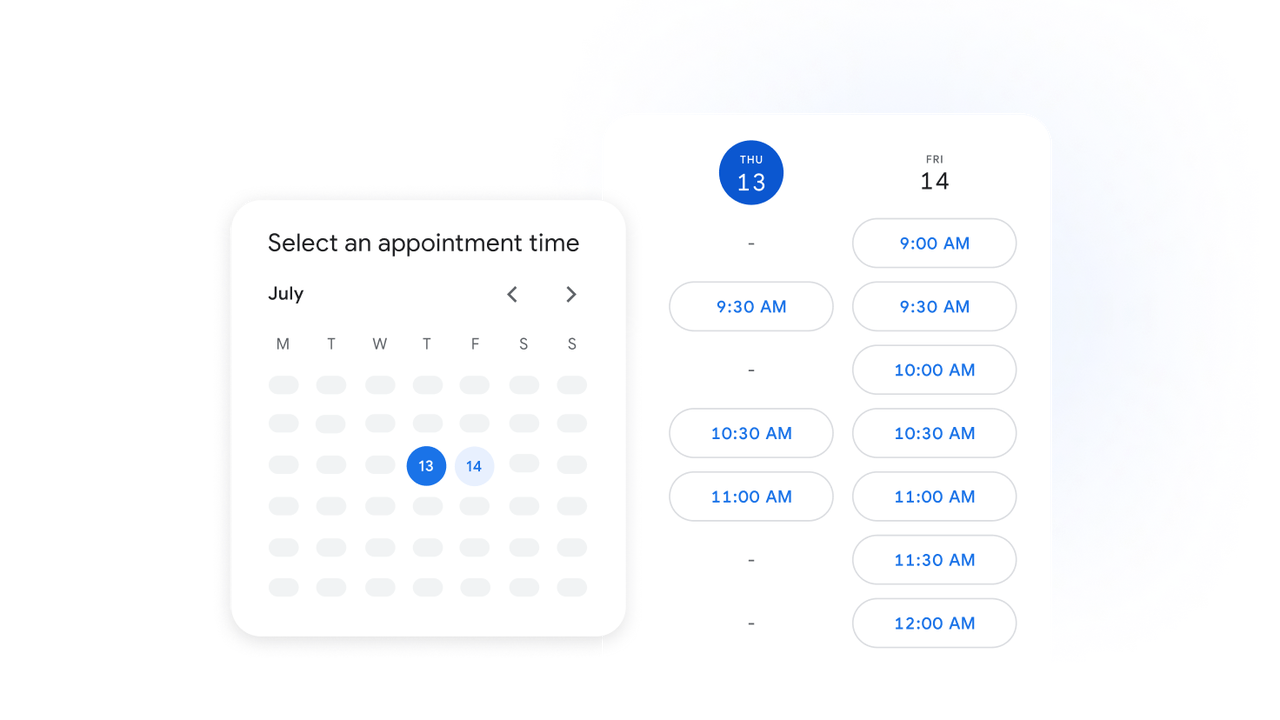
Google Calendar is built to be a web-first, collaboration-first tool. It works the same on a Chromebook, a Windows laptop, or an iPhone browser. If your work involves coordinating with people who aren't all on Apple devices, Google handles that with less friction. I checked — you can share entire calendars, set granular permissions, and embed a public calendar on a website, all from Google Calendar's sharing settings.
Apple Calendar is built to be a device-native experience. It's fast, it's pretty, and if you're already managing your life through iCloud, it just works. The Calendar User Guide on Apple's support site covers everything from delegation to shared family calendars — it's more capable than people give it credit for. With Apple Intelligence on-device, Siri has gotten better at parsing natural language for event creation. "Found in Apps" detects dates from your emails and messages and suggests calendar entries — that's a nice touch.
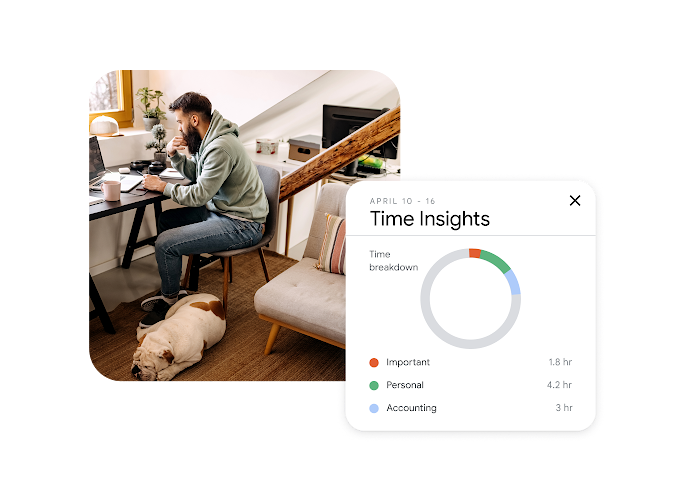
Google's AI play is different — Gemini integration can suggest meeting times based on participant availability and summarize your upcoming week. Gmail still auto-detects travel bookings. It's less "on-device magic" and more "cloud-connected convenience."
Here's how I think about it: Google Calendar is better at working with other people. Apple Calendar is better at working with your own devices. Pick based on which problem you actually have.
Sharing, Tasks, and Calendar Management
This section matters if you're running things solo or with a tiny team.
Sharing: Google Calendar wins here, and it's not close. You can share calendars with specific people, set view-only or full-edit permissions, and the person on the other end just needs a Google account. Apple Calendar shares through iCloud and works well Apple-to-Apple, but try coordinating with someone on Android or Windows and you'll feel the edges. Check Apple's iCloud Calendar setup guide for the latest on cross-platform support.
Tasks: Google Calendar integrates with Google Tasks in a sidebar, and as of late 2025, Google rolled out tighter integration — you can now time-block tasks directly on your calendar, and completing the task updates both the calendar event and your task list. That actually works pretty well.
Apple doesn't have a built-in task system inside Calendar. It pairs with Apple Reminders, a separate app. Reminders is solid — location-based triggers, smart lists, natural language input — but it doesn't live inside your calendar view the way Google Tasks does. You're switching apps. For me, that added just enough friction that I stopped using it for work tasks.
I'm not going to say "it depends" and leave it there. If you're a solo operator juggling client deadlines, content schedules, and follow-ups — having tasks visible on the same screen as your calendar is a real difference, not a feature-list bullet point.
Sync and Cross-Platform Trade-Offs
Okay, let's talk about how to sync Apple and Google Calendar together, because this is where people get tripped up.
The good news: you can view Google Calendar events inside Apple Calendar. On iPhone, go to Settings → Calendar → Accounts → Add Account → Google. Done. Your Google events show up, and you can create events from either side.
The trickier part is the reverse — getting iCloud events into Google Calendar. The native method is one-way: make your iCloud calendar public, copy the webcal URL, subscribe in Google Calendar. But it's read-only on the Google side, and updates can take hours. I could be wrong about current refresh speeds — worth checking — but in my experience, it's not instant.
For true two-way sync, you'd need a third-party tool. I haven't committed to one long enough to recommend a specific service. Just know that if you need bidirectional sync between iCloud and Google, the built-in tools don't fully cover it as of when I'm writing this.
One practical thing to check before syncing: make sure you know which calendar is set as your default for new events. I've seen people accidentally create events on the wrong calendar for weeks before noticing. Small thing, but small things compound when you're managing a full workload alone.
The Bigger Question: Do Reminders Move Work Forward?
This is the part most Google Calendar or Apple Calendar comparison articles completely ignore, and it's the part I think actually matters.
Both calendars are excellent at one thing: telling you what's next. Color-coded events, pop-up alerts, smart suggestions — all useful. But here's what I've been sitting with lately.
I changed my mind about something. I used to think a well-organized calendar was the backbone of productivity. Fill in every block, color-code everything, set reminders for everything. And yet — at the end of a packed week, I'd look back and realize the calendar was full but the actual work hadn't moved. The meetings happened. The reminders fired. But the follow-ups, the prep, the execution? Still on me, every single time.
A calendar tells you when. It doesn't do the work.
That meeting prep you blocked 30 minutes for? You still have to open the right docs and organize your thoughts. That follow-up after a client call? The calendar reminded you. But it didn't draft the email, pull the context, or check whether you'd already sent something similar.
For solo operators especially — the people doing strategy, execution, client work, and admin all in the same day — the gap between "I know what's on my schedule" and "the work is actually progressing" is where things break down. Is Google Calendar better than Apple Calendar? Honestly, for most people, they're both good enough. The more useful question is whether a calendar alone is enough to keep your work moving forward.
If you find yourself in that gap — calendar packed, work still waiting for you to manually push every piece — it might be worth thinking about whether your workflow needs an execution layer on top of your calendar, not just a prettier reminder system.
That's actually what got me looking into Floatboat. It's not replacing Google Calendar or Apple Calendar — it sits after them. Your calendar holds the promises (meetings, deadlines, follow-ups), and Floatboat uses agents to move those promises forward: prepping meeting briefs before you ask, generating follow-up drafts from context, running recurring work loops without you rebuilding the same flow every Monday. I'm still early with it, but the concept — not another reminder, but something that actually does the next step — is the most interesting shift I've explored this year.
FAQ
What is the difference between Google Calendar and Apple Calendar?
Google Calendar is a web-first scheduling tool that's part of Google Workspace — it works across all platforms and is strongest in collaboration: sharing, permissions, Google Meet integration, and Gmail auto-detection of events. Apple Calendar is a native app optimized for the iCloud ecosystem with Siri integration and on-device processing through Apple Intelligence. The core difference isn't features — it's ecosystem. Google is built for cross-platform coordination; Apple is built for seamless device-native use.
Can I use Google Calendar and Apple Calendar together?
Yes, and a lot of people do. The simplest way is to add your Google account to your iPhone or Mac's calendar settings — Google events show up in Apple Calendar automatically. Going the other direction requires subscribing via a public webcal URL, which creates a one-way, read-only view. For full two-way sync, you'd need a third-party tool. Details can change, so check the latest official documentation before setting this up.
What should users check before syncing calendars?
Confirm which calendar is set as your default for new events — this prevents creating events on the wrong account for days before you notice. Also know that iCloud-to-Google sync via webcal URL is one-way and can have delays. Test with a few dummy events before trusting it with your real schedule. These things vary by OS version, so please check the latest official docs from both Apple and Google to confirm current behavior.
When is Google Calendar better for work?
When your work involves coordinating with people outside the Apple ecosystem, when you rely on Google Workspace tools like Gmail and Meet, or when you need to share calendars with clients who use different devices. It's also the stronger pick if you want built-in task management alongside your schedule, especially now that Google Tasks can be time-blocked directly on the calendar.
When is Apple Calendar the better fit?
When your entire device setup is Apple, your scheduling is mostly personal or small-team, and you value speed, clean design, and Siri voice input. Apple Calendar is also worth choosing if on-device processing and privacy matter — Apple Intelligence handles event suggestions locally. If you don't need heavy collaboration and you want your calendar to feel like a natural part of your phone, it does that well.
That's my honest take. The "which is better" framing is a bit misleading — what actually matters is which one fits the way you work. And if you've already figured that part out but your weeks still feel like you're manually chasing every task your calendar surfaces — maybe the next question isn't about which calendar to use. It's about what happens after the reminder fires. That's where Floatboat comes in, and where I've been spending my time lately.
Previous Posts:
• Constantly jumping between calendars, email, docs, and task apps? Read Stop Context Switching: Why Workspace Agents Matter to see why tool-switching quietly eats more time than most solo operators realize.
• If your calendar keeps reminding you about work but never actually moves it forward, Workspace Agents for Solo Operators breaks down what happens after scheduling ends.
• A packed calendar doesn't always mean meaningful progress. AI Workflow for Solo Founders looks at why productive-looking systems still create manual work.
• Wondering whether you need another assistant or something more proactive? Workspace Agents vs Chat Assistants compares the two through everyday workflows.
• Rebuilding the same weekly tasks over and over? How to Build AI Agents for Repeated Work explores how recurring work loops can be handled differently.
Get automation tips for your workflow
Weekly insights for non-technical professionals. No spam ever.